By Handy Finds Club · November 11, 2026
Research-based recommendations. Our approach.
Start with the paper you want to keep
Gather the handwritten notes, loose documents and notebook pages you want to digitize. Sort them into a small batch before you start. The ScanSnap SV600 scans from above, so loose sheets and bound pages can stay on the desk instead of passing through a document feeder. It scans one side at a time.
For occasional single sheets, a phone scan app or a flatbed scanner you already own may be enough. The SV600 is worth considering when you regularly need to scan paper that you want to leave flat or bound.
Leave room for the scanner and the page
The scanner body is about 8.3 inches wide, 6.1 inches deep and 15.1 inches tall, excluding projections. Leave additional space for the document and background pad.
The manufacturer lists a maximum document area of 17.0 × 11.8 inches (432 × 300 mm) and a maximum thickness of 1.18 inches (30 mm). For material thicker than 5 mm, the maximum area narrows to 400 × 300 mm. Measure the pages you plan to scan before choosing a place for it.
Check your computer before shopping
The SV600 needs power, a USB connection to a compatible computer and ScanSnap Home software. It is not a standalone Wi-Fi scanner. Open the current Windows or macOS support page below, check your computer and OS, then use the official download page for the latest compatible installer.
Do not assume every Windows 11 computer is compatible: the manufacturer’s Windows-on-ARM compatibility list does not include the SV600. Check the current support information before buying for a Snapdragon or other ARM-based Windows computer. Software bundles can vary by region and shipment date.
The photo and the current U.S. model
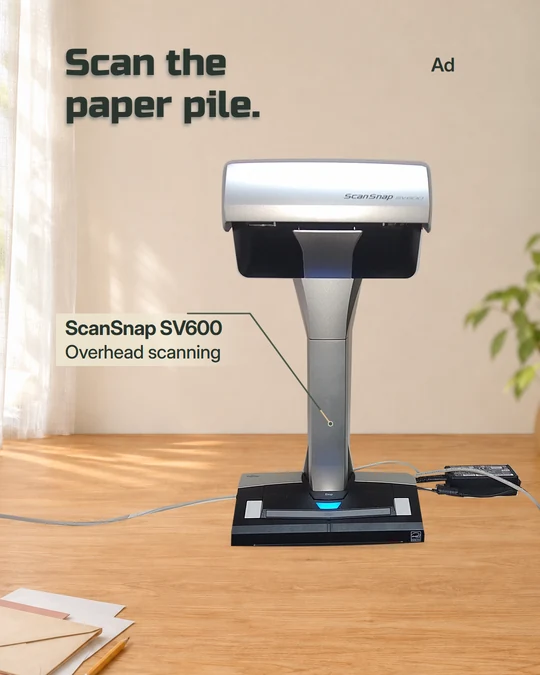
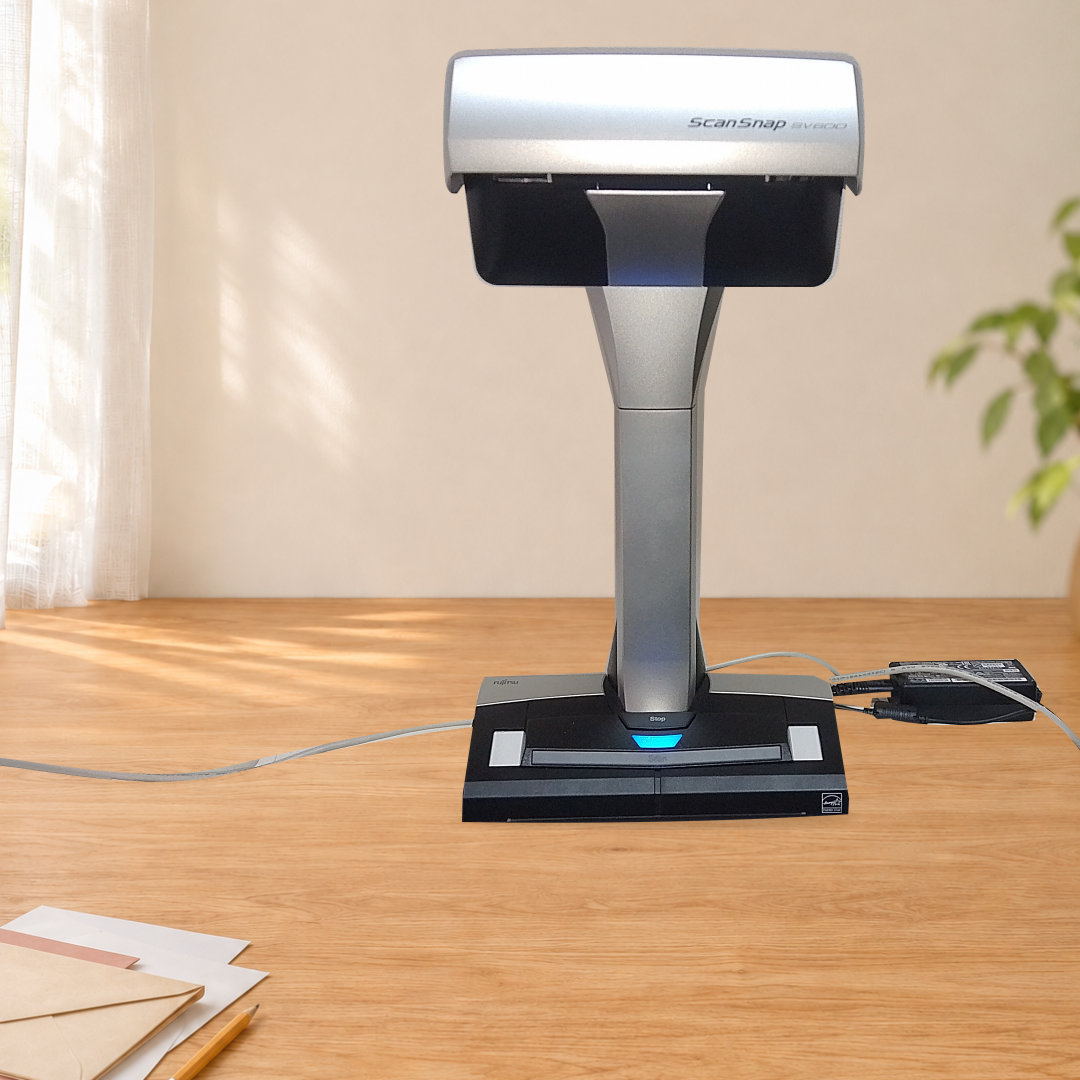
The photograph shows an earlier Fujitsu-branded ScanSnap SV600. Its exact regional SKU and manufacture date are unverified. The original photograph was taken in 2024; that date does not establish when the scanner was made.
The ordinary U.S. shopping link below is for the current Ricoh-branded SV600, item PA03641-B305. The pictured Fujitsu badge does not identify the current U.S. sales bundle. This guide is based on manufacturer specifications, not a hands-on test; scan quality and automatic correction performance have not been independently tested here.
Sources & further details
Manufacturer links show current specifications, variants, and availability. Check those details before ordering.
Photo credits
PFU ScanSnap SV600.jpg by Milicevic01, photographed October 3, 2024, own work via Wikimedia Commons. Original photo licensed CC BY-SA 4.0 International.
We manually masked the scanner, power adapter and principal cable runs and resized them proportionally onto an AI-generated morning home desk with added shadows. We preserved the source hardware colors, complete scanner silhouette, Fujitsu badge and ScanSnap SV600 marking. We removed the original background, cropped black pad, small loose cable loop at left and short loose black cable segment. The principal cable ends are cropped at the frame edges; no complete pad was generated. The scene shows preparation, with paper at left and no completed scan. The square guide image retains the whole composition. Social versions add a headline, product label, leader line and Ad marker; Pinterest places the paper pile higher. Original GPS and other location metadata were omitted. The adapted guide and social images are available under CC BY-SA 4.0 International, with no additional restrictions. View the adapted guide image at full size.
Back to the picks ↑